Need to update the email on your Business Manager? No problem — just follow these quick steps to get it done in a few minutes.
🔑 Step 1: Log In
Head to Facebook Business Manager.
Click the ⚙️ Settings icon on the left-hand side.
Select Business Settings from the menu.
🧭 Step 2: Find Your Business Info
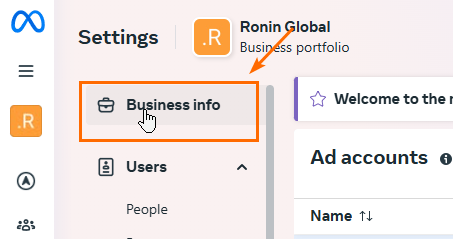
Inside Business Settings, click Business Info (usually near the top).
You’ll see your current email listed under Business Details.
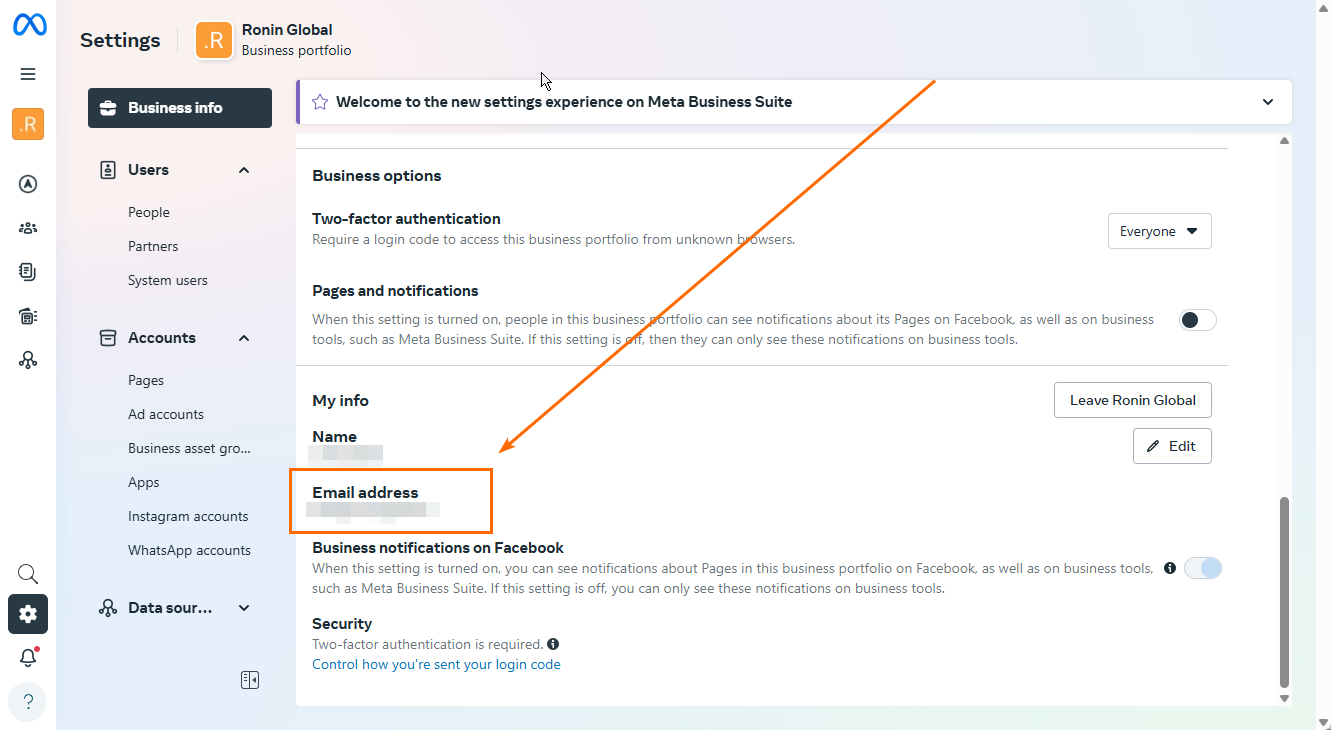
✏️ Step 3: Update Your Email
Click the Edit button next to your email address.
Type in your new email address.
Hit Save or Update.
✅ Step 4: Confirm the Change
Check your inbox for a confirmation email from Facebook.
Click the verification link inside that email.
🔄 Step 5: Refresh and Confirm
Go back to Business Settings in Facebook Business Manager.
Refresh the page to make sure your new email is showing correctly.
📌 Need-to-Know:
Didn’t get the confirmation email? Be sure to check your Spam or Junk folders.
Make sure the new email address is working and you have access to it.
Still need help? Message us anytime — we’ve got you.