1️⃣ Log In to Facebook
- Go to Facebook.
- Enter the UID and password provided by your provider.
- When prompted for a 2FA code, do not enter anything yet—proceed to the next step.
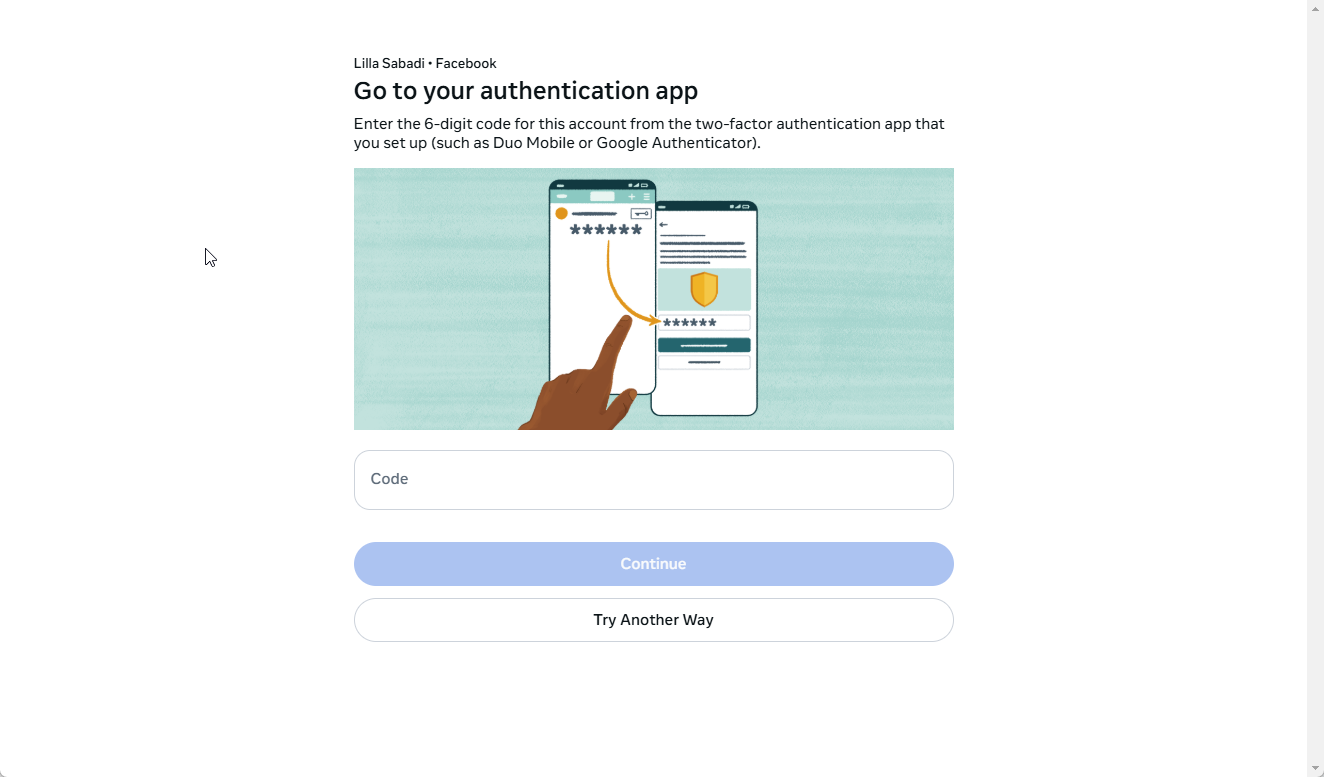
2️⃣ Generate Your 2FA Code
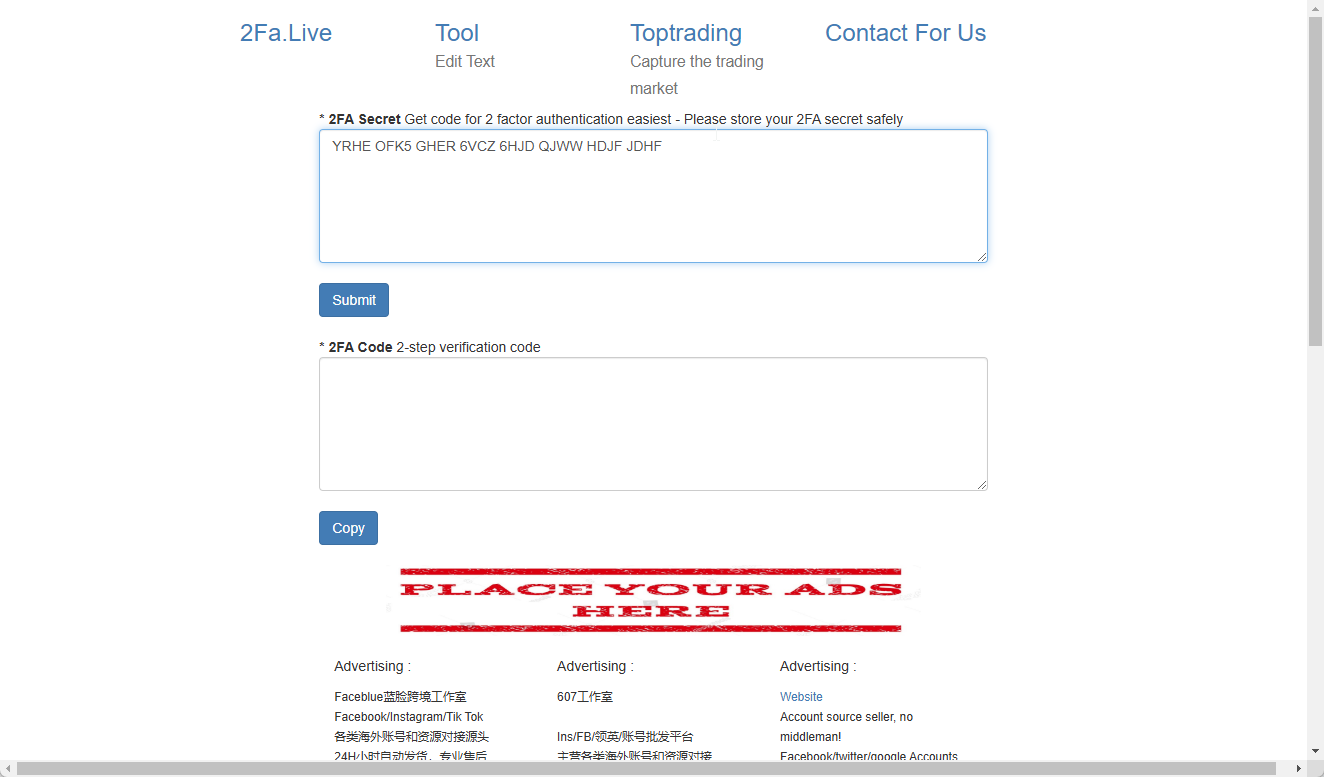
- Open 2FA.live in your browser.
- Copy the 2FA key provided by your provider (e.g.,
YRHE OFK5 GHER 6VCZ 6HJD QJWW HDJF JDHF). - Paste the key into the text box on 2FA.live.
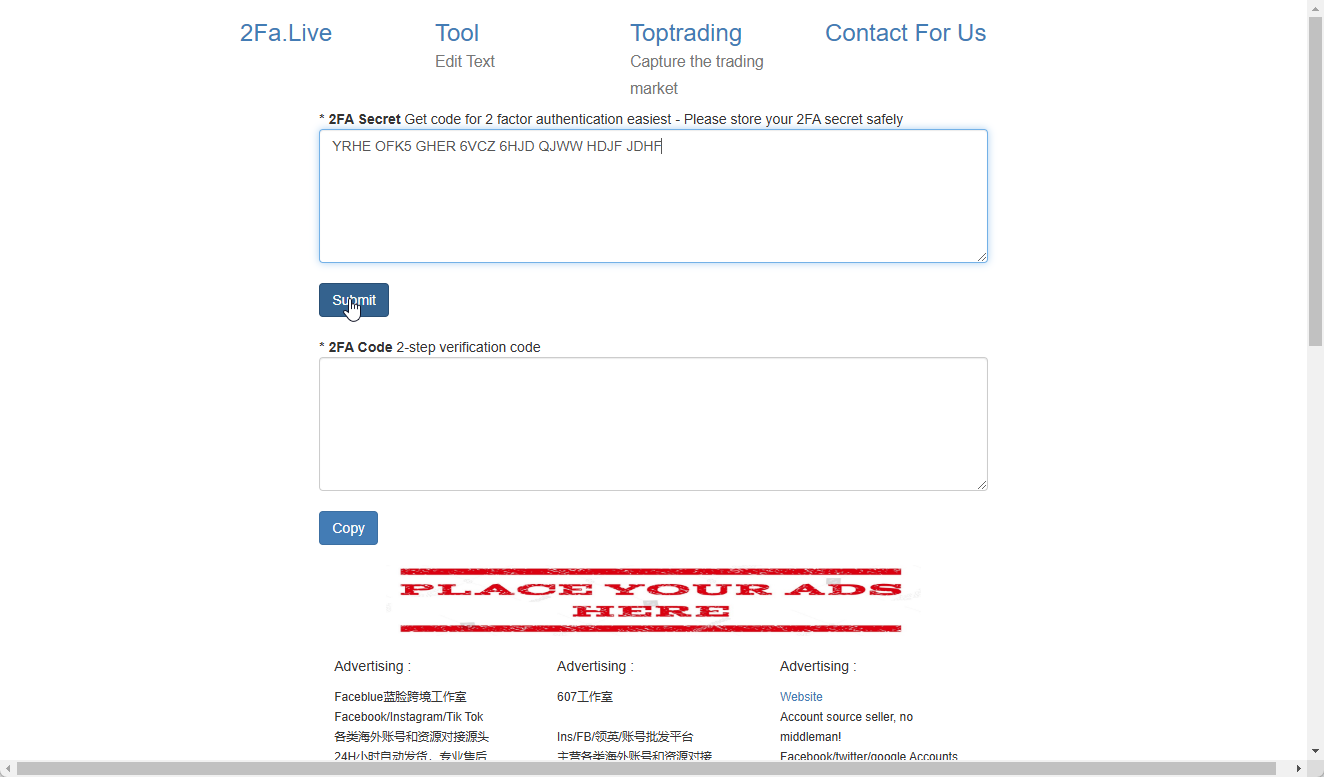
3️⃣ Submit the Key
- Click the "Submit" button to generate your 2FA code.
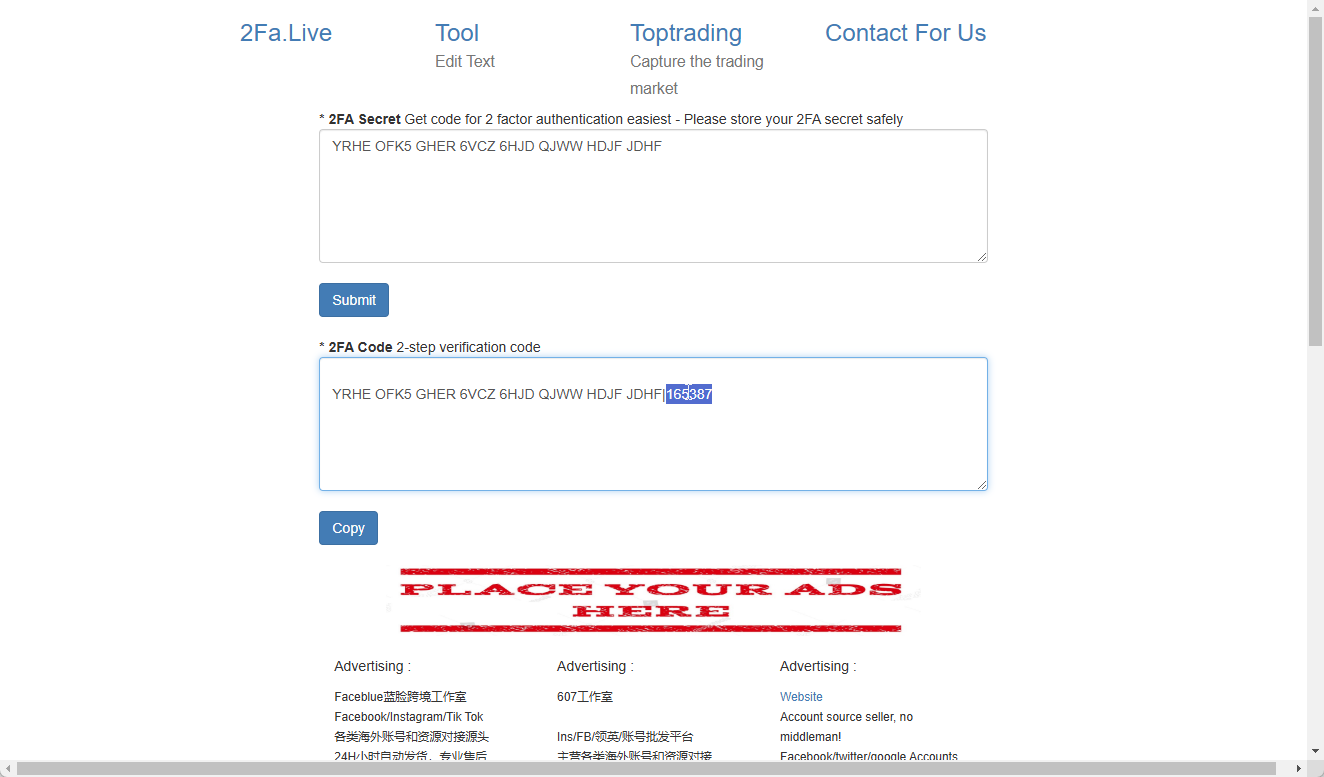
4️⃣ Copy the 6-Digit Code
- A 6-digit authentication code will be displayed.
- Copy the last 6 digits from the generated code.
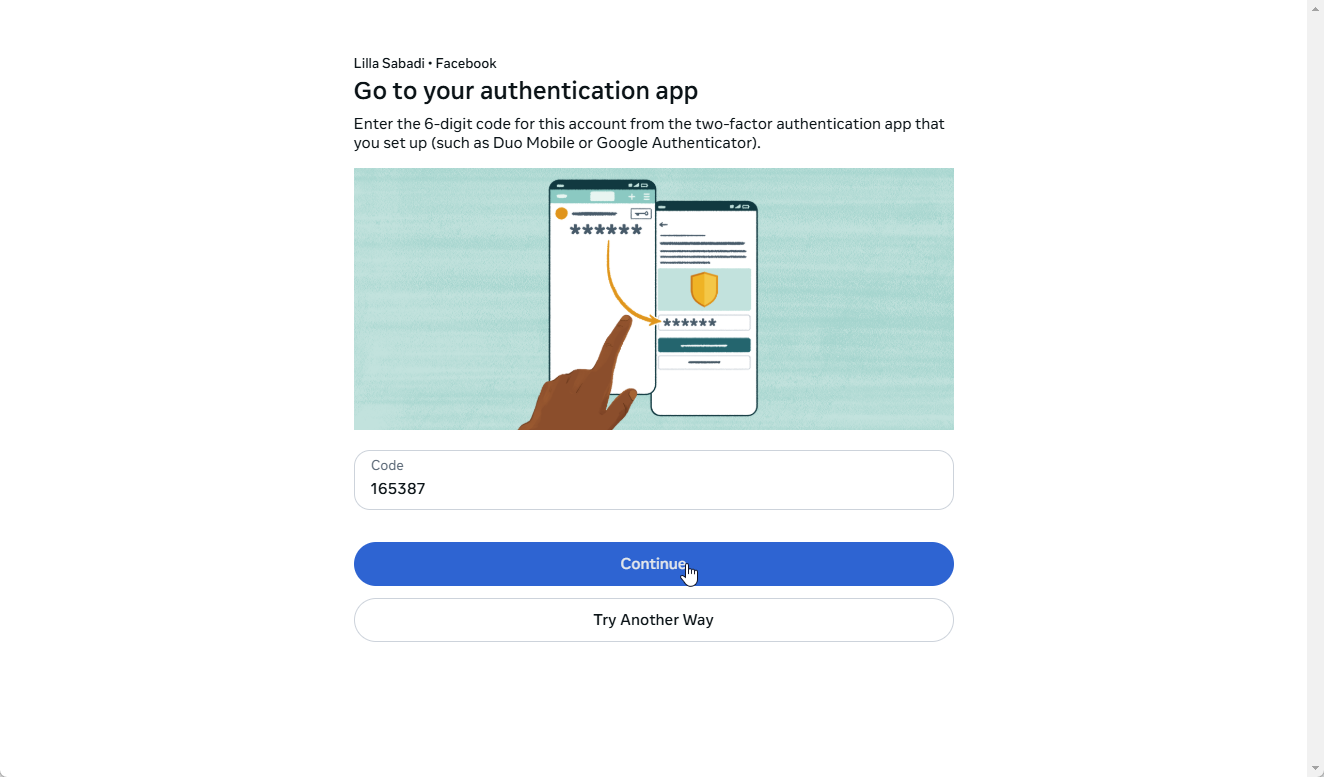
5️⃣ Log In to Facebook
- Return to the Facebook login page.
- Paste the 6-digit code into the 2FA field where prompted.
- Click "Continue" or "Log In" to complete the process.
🎉 You’re in! You have successfully logged into Facebook using two-factor authentication. 🚀
📌 Need help? Double-check the 2FA key and ensure it's entered correctly on 2FA.live.
Need Help?
If you have any issues or questions, feel free to reach out—we’re here to assist you! 😊
📞 Contact Support:
🔹 Email: help@roninglobal.io
🔹 Whatsapp: https://api.whatsapp.com/send?phone=15557245111
🔹 Telegram: https://t.me/RoninAccounts_bot