Changing Your 2FA Code on Facebook
Step-by-Step Guide: Changing Your 2FA Code on Facebook
1️⃣ Access the Account Center
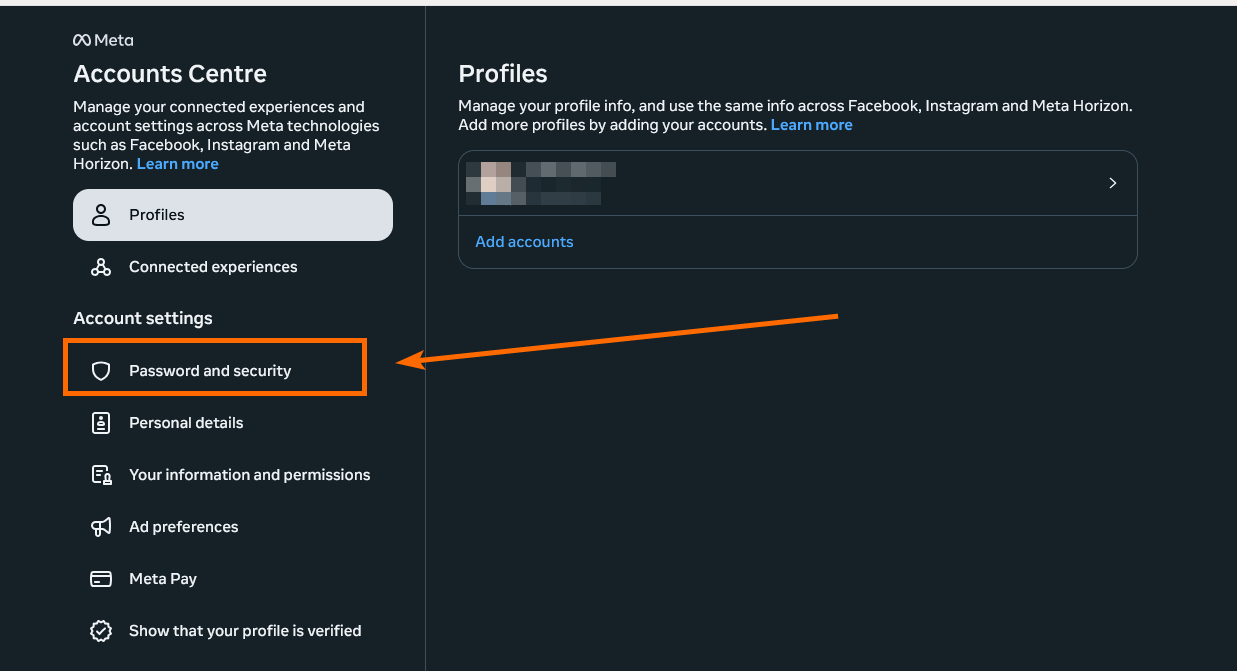
2️⃣ Open Password and Security Settings
- Click on Password and Security from the menu.
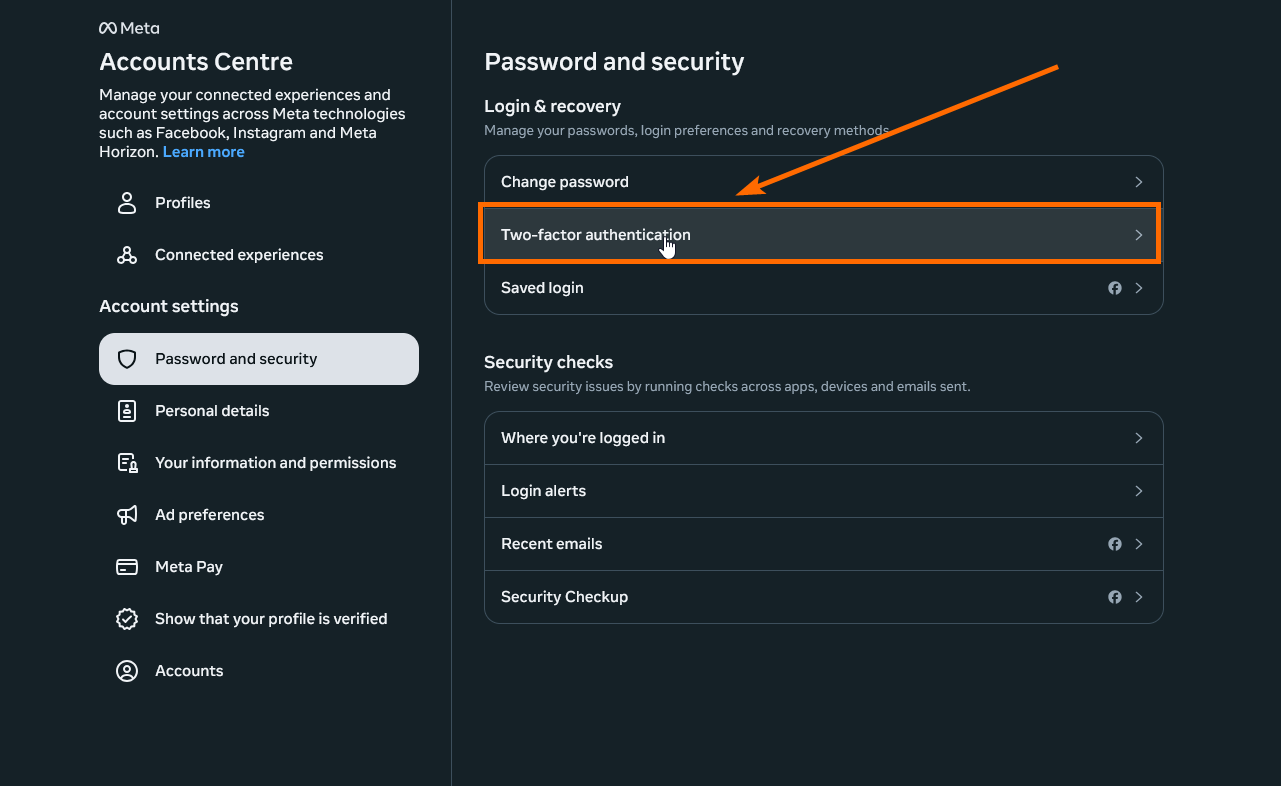
3️⃣ Go to Two-Factor Authentication (2FA)
- Select Two-factor authentication from the options.
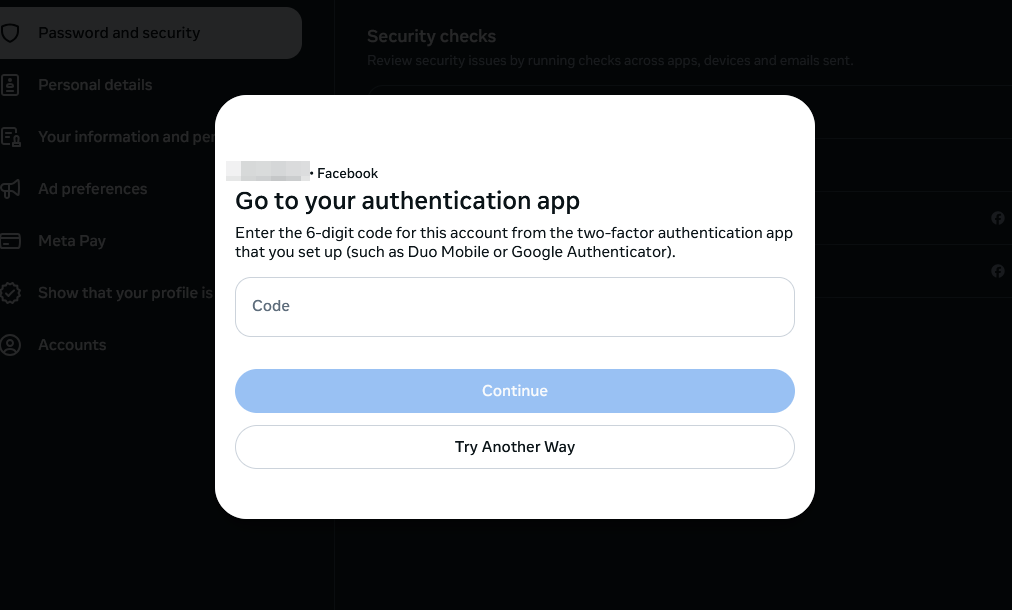
4️⃣ Select Your Profile and Verify 2FA
- Choose the profile you want to update.
- Enter your current 2FA method when prompted.
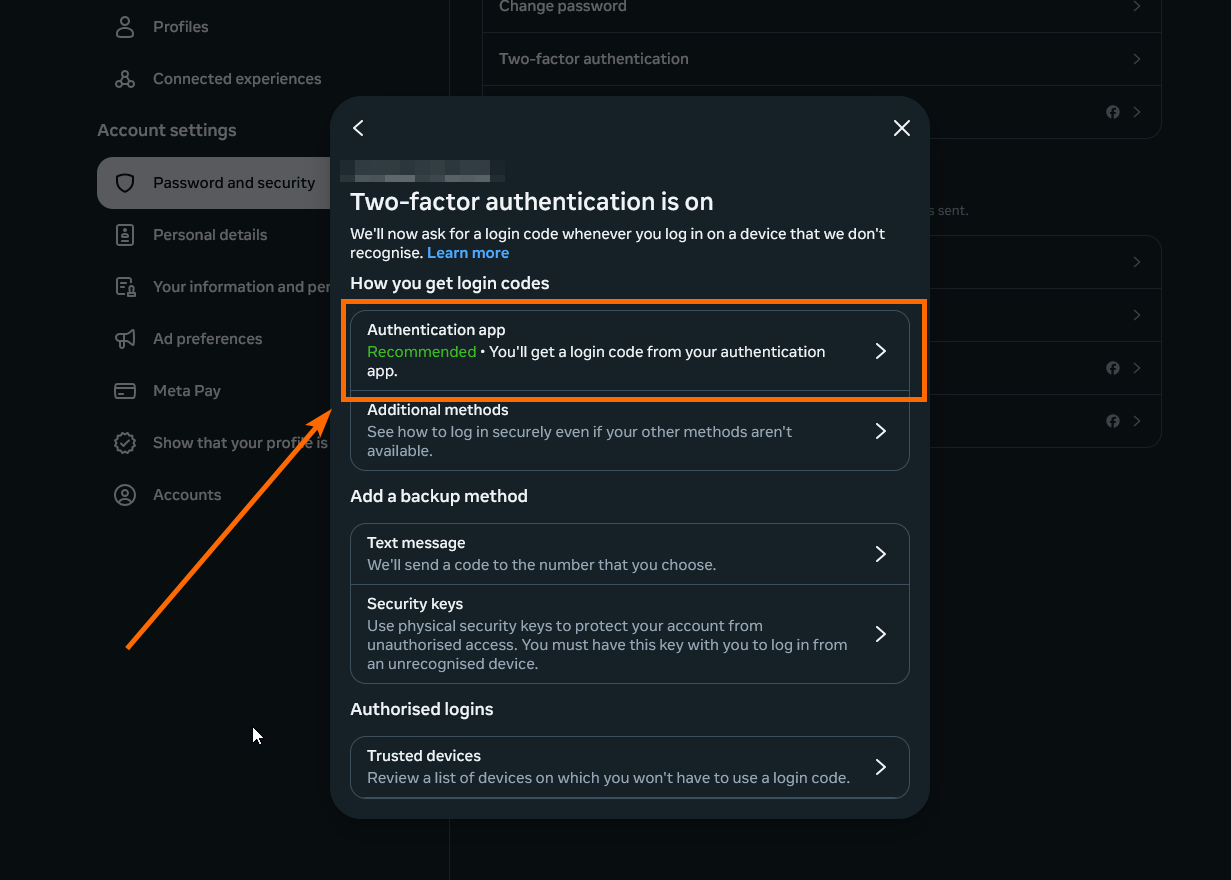
5️⃣ Ensure 2FA is Turned On
- Confirm that Two-factor authentication is enabled for the profile.
6️⃣ Add a New Authentication App
- Click on Authentication app under the 2FA options.
- Select Add.
- Assign a name to this method for easy identification, then click Next.
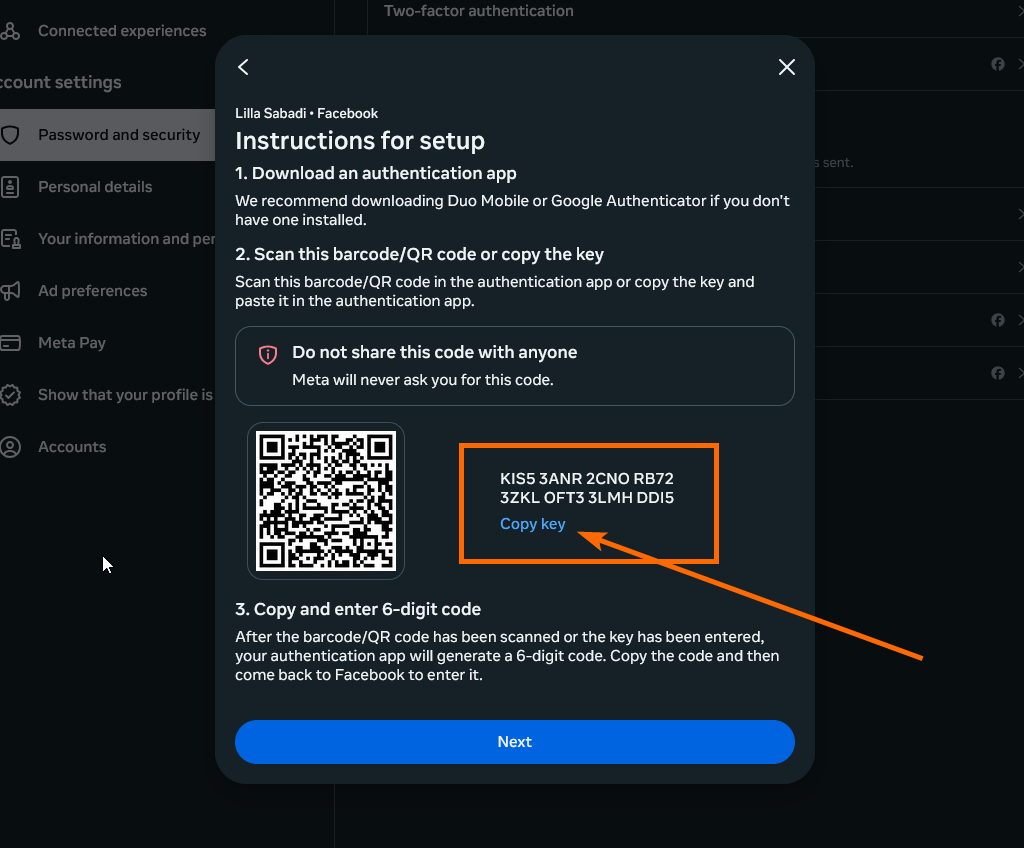
7️⃣ Generate and Copy the Key
- Copy the key displayed on the screen.
- Make sure you back it up as you will need it each time to pass the 2FA method.
8️⃣ Generate a New 6-Digit Code
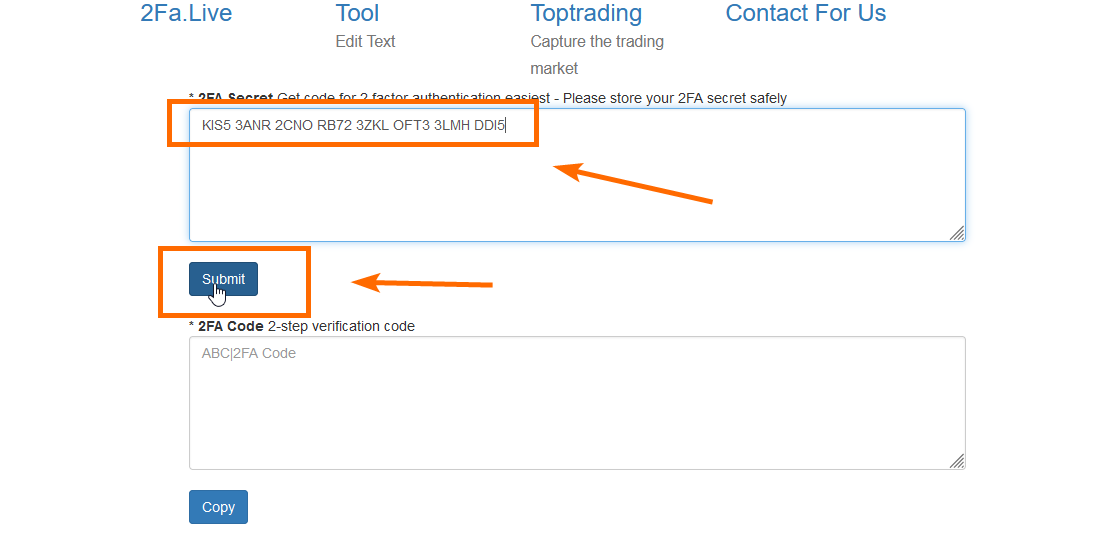
- Open https://www.2fa.live in your browser.
- Paste the key into the text box on the 2FA Live website.
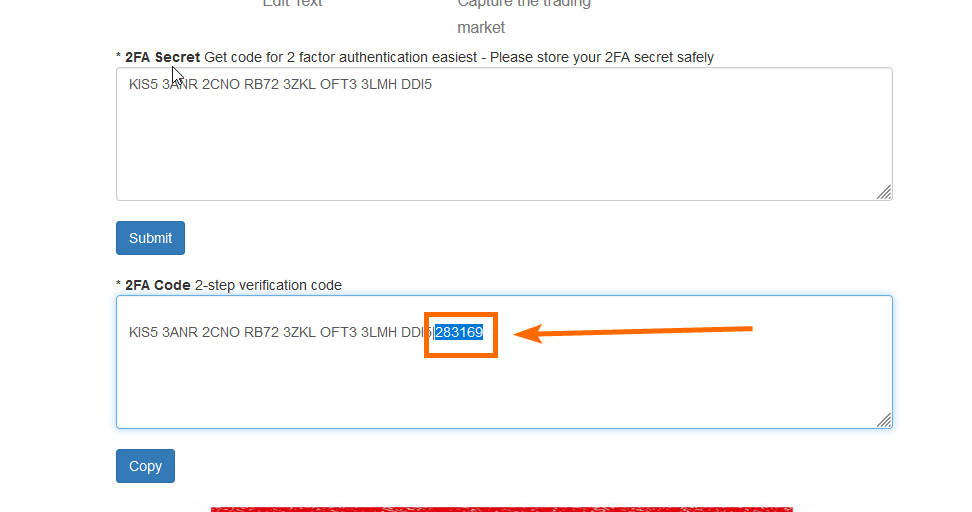
- Click on Submit to generate a 6-digit code.
9️⃣ Enter the Code on Facebook
- Copy the 6-digit code generated by 2FA Live.
- Return to the Facebook site and click Next.
- Paste the 6-digit code. If the code has expired, generate a new one and try again.
🔄 Clean Up Old 2FA Method
- Once the new 2FA method is set up, remove the old 2FA method from the profile to avoid confusion.