💡How to Update Your Recovery Email in Hotmail
Option A: Use an Existing Trusted Email
If you already have a trusted and secure email account, you can use it as your recovery email.
Option B: Create a New Recovery Email
For this guide, we recommend creating a new recovery email with Proton Mail. Check the
Creating A New Recovery Email guide on how to create a new Proton email.
Creating A New Recovery Email guide on how to create a new Proton email.
Steps in updating the recovery email:
1️⃣ Sign in:
- Go to Hotmail Login and sign in to your account.
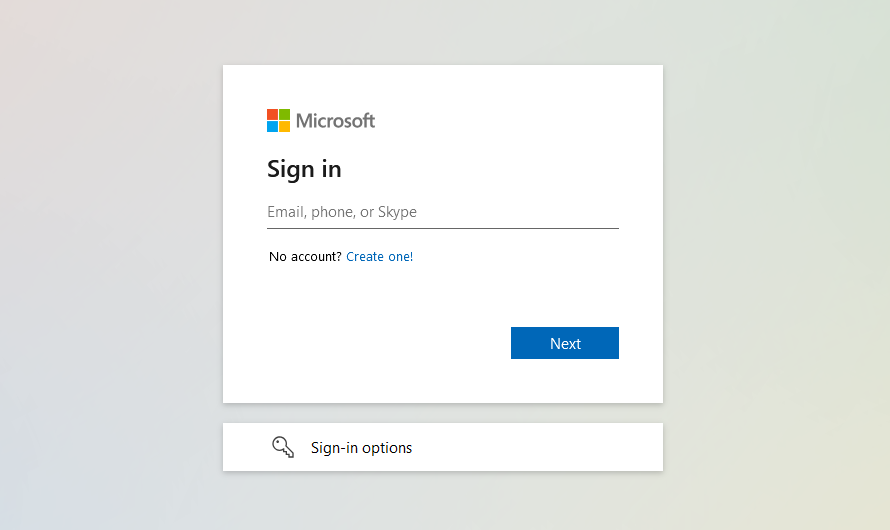
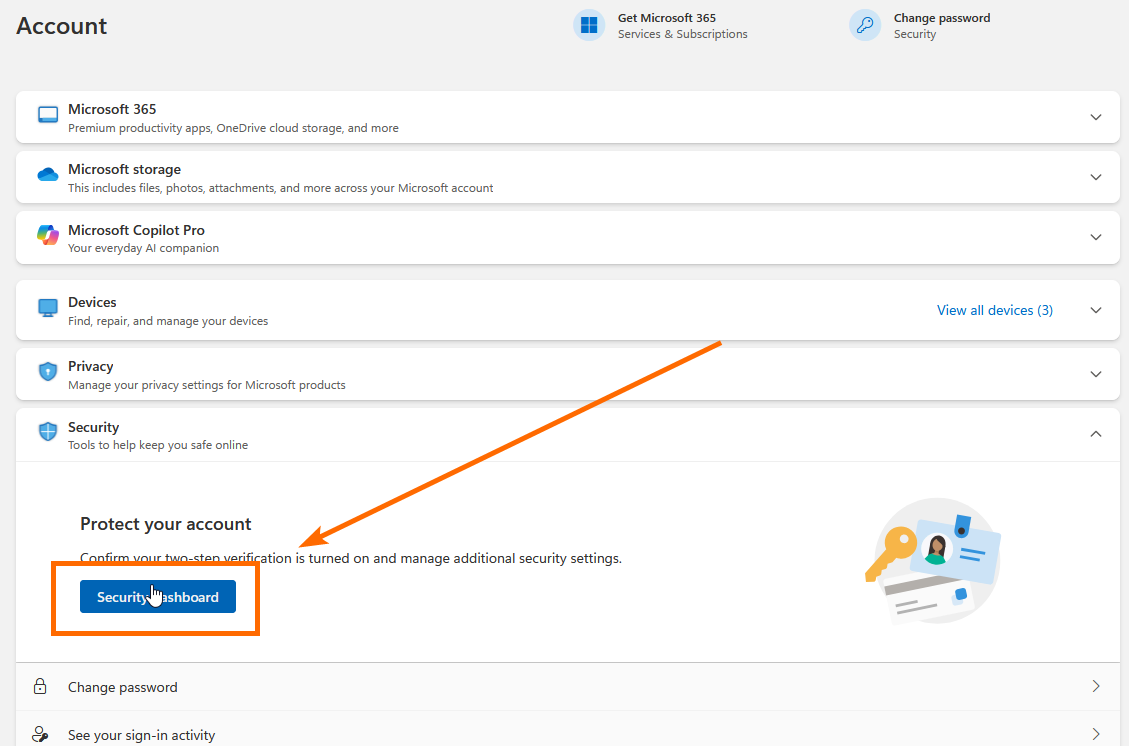
2️⃣ Access security settings:
- Navigate to the Security Dashboard.
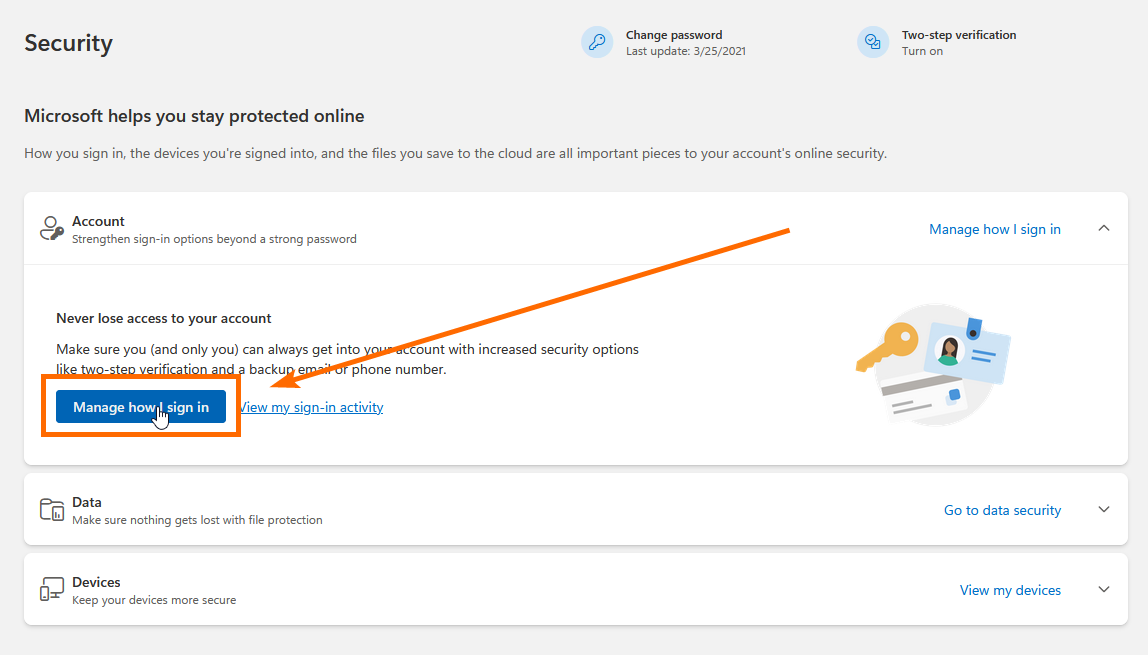
3️⃣ Manage sign-in options:
- Select Manage how I sign in.
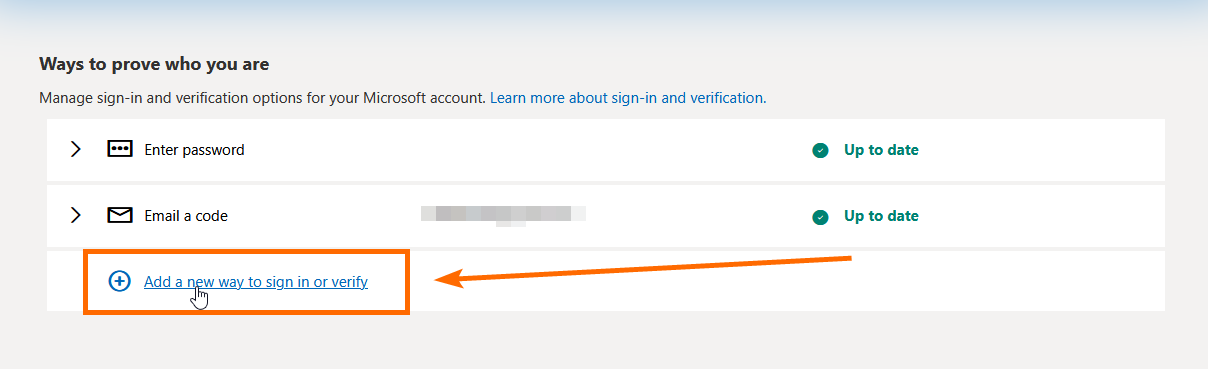
4️⃣ Add a new sign-in method:
- Click Add a new way to sign in or verify.
5️⃣ Choose email verification:
- Select Email a code: Get an email and sign in with a code.
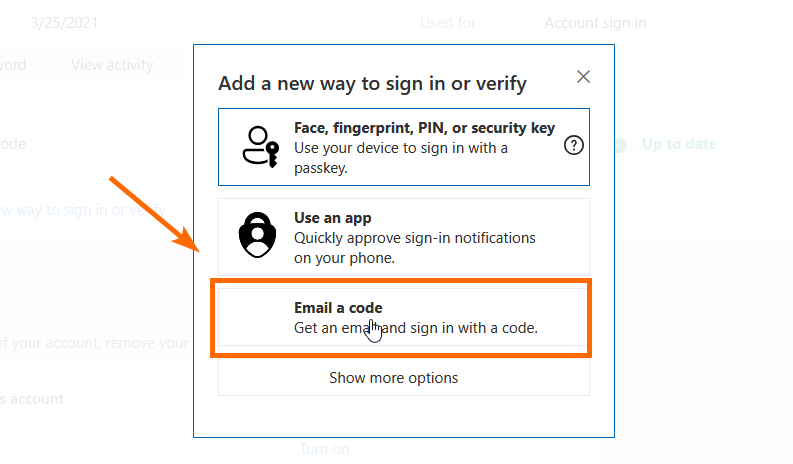
6️⃣ Add a new recovery email:
- Enter an alternate email address:
- This can be your newly created Proton Mail email (see section below) or any trusted email you have full control over.
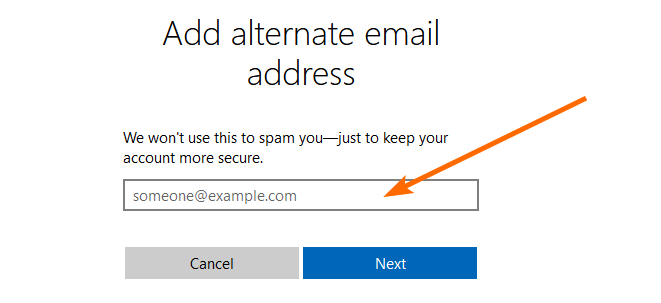
7️⃣ Verify the new email:
- Enter the code sent to the new recovery email address.
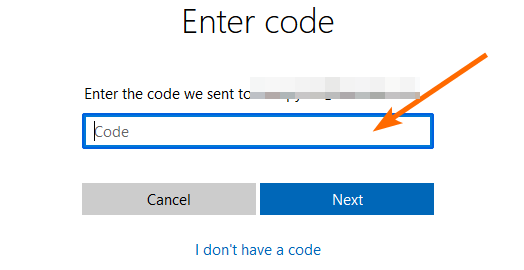
8️⃣ Remove the old recovery email:
- Once the new email is added, remove the old recovery email.
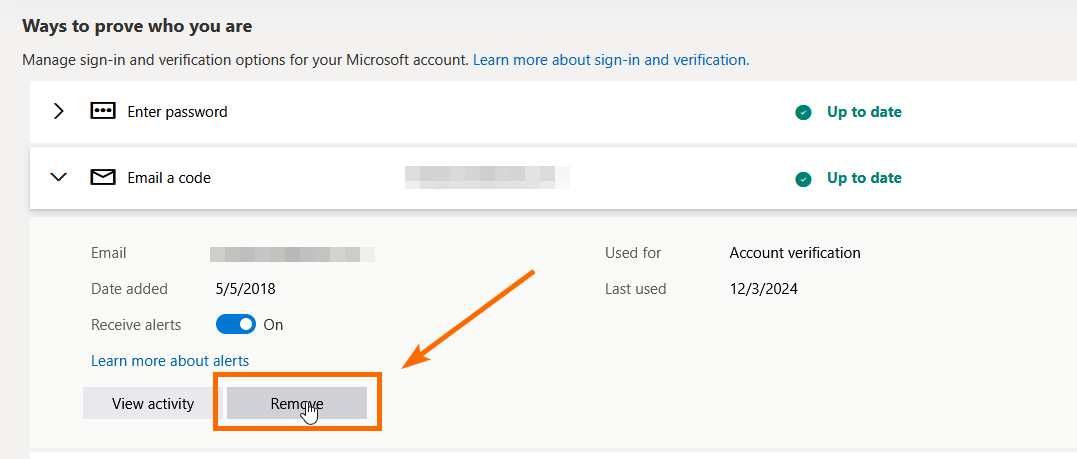
🎉 Done! Your recovery email is now updated.
🚀 Pro Tip: Regularly review your recovery email and ensure it’s secure and up-to-date!